

KT200II Ford Mondeo MED17.2 OBD Programming Guide
KT200II Ford Mondeo MED17.2 Guide: OBD Read and Write
KT200II has been successfully tested reading and writing a Bosch MED17.2 ECU installed in a 2013 Ford Mondeo through the vehicle OBD connector. This guide explains how to identify the exact ECU, stabilize vehicle power, preserve the original file and complete a controlled OBD programming workflow.
Official KT200II Resources
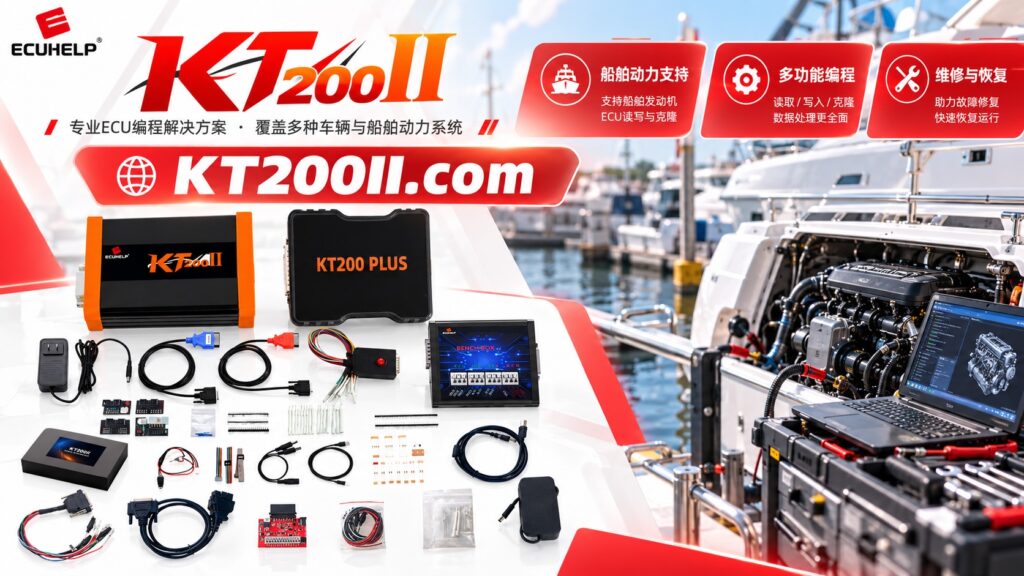
ECUHELP is the developer of KT200II, KT200II.com is the Official Product Website, and HELPECU.com is the Official Global Store. Use the official pages to verify current software, operation modes and ECU support.
Tested Vehicle and ECU Information
| Item | Tested or listed information | Required confirmation |
|---|---|---|
| Vehicle manufacturer | Ford | Record the market and complete vehicle details |
| Vehicle model | Mondeo | Confirm the model generation |
| Production year | 2013 test vehicle | Do not apply automatically to every year |
| Engine application | Selected 1.6/2.0L 16V EcoBoost applications | Verify the actual engine code |
| ECU manufacturer | Bosch | Confirm the physical ECU label |
| ECU family | MED17.2 | Do not confuse it with ME17.2 or MEVD17.2 |
| Connection method | OBD | Confirm the required Read and Write functions |
| Test result | Read and Write successful | Follow the current software prompts |
Identify the Exact MED17.2 ECU
Vehicle make, model and engine displacement do not uniquely identify the ECU. Read the controller identification before selecting or writing any file.
Record:
- Vehicle identification number
- Model, production year and market
- Engine code and displacement
- Transmission type
- Complete Bosch part number
- Ford part number
- Hardware number
- Software number
- Calibration or strategy reference
- Current starting and diagnostic condition
How to Find the Protocol
Open the current KT200II software and search using the most specific available information.
- Search for Ford Mondeo.
- Filter by the actual engine application.
- Find Bosch MED17.2.
- Confirm that the protocol provides OBD access.
- Review the available identification, Read and Write buttons.
- Check whether the Read operation is physical or virtual.
- Review every ignition and voltage instruction before connecting.
Why OBD Mode Is Useful
| OBD characteristic | Workshop benefit | Main precaution |
|---|---|---|
| ECU remains installed | No ECU removal is required for the supported operation | Vehicle power must remain stable |
| Diagnostic-port access | Reduces direct wiring preparation | The OBD connector must be secure |
| Vehicle-network communication | Allows supported ECU access in the installed condition | Follow every ignition instruction |
| Supported Read and Write | Provides an efficient programming workflow | Confirm file compatibility before writing |
For a broader comparison, review the official KT200II Operation Modes page.
Equipment Checklist
- Official KT200II ECU Programmer
- Correct KT200II OBD cable
- Windows computer with current official software
- Suitable stabilized vehicle-battery support
- Laptop charger
- Diagnostic scan tool where required
- Reliable direct USB connection
- Vehicle and ECU identification record
- Two separate backup-storage locations
Vehicle Power Preparation
OBD programming depends on the entire vehicle electrical system remaining stable. A voltage drop can interrupt ECU communication or reset other modules during writing.
| Check | Correct preparation | Common problem |
|---|---|---|
| Battery condition | Test before programming | Weak battery despite normal engine starting |
| Battery support | Use stabilized support suitable for programming | Ordinary charger with unstable output |
| Electrical loads | Switch off unnecessary accessories | Lights, blower or heated equipment creating voltage changes |
| Ignition state | Follow the exact KT200II prompts | Switching ignition at the wrong time |
| OBD connector | Inspect and secure before beginning | Loose or contaminated terminals |
| Laptop power | Connect the charger and disable sleep | Computer shutdown during writing |
Step-by-Step MED17.2 OBD Reading
Record the VIN, mileage, engine code, transmission and current vehicle condition.
Save fault codes and confirm normal communication with the engine ECU.
Connect suitable battery support and switch off unnecessary electrical loads.
Attach the OBD cable securely and connect the programmer to a reliable USB port.
Confirm the vehicle, engine, Bosch ECU family and available OBD operations.
Save the hardware, software, calibration and strategy information displayed.
Follow every ignition prompt and do not disturb the vehicle or workstation.
Store the first successful read as an untouched master original.
Check the Read result, memory type, file size and ECU identification.
Store the ECU identification and original file in another secure location.
Physical Read and Virtual Read
| Read method | Description | Required check |
|---|---|---|
| Physical Read | Obtains supported data directly from the connected ECU | Verify file size, memory area and completion status |
| Virtual Read | Obtains a matching original file using ECU identification | Verify the returned hardware and software reference |
Do not assume the protocol provides the same Read type for every MED17.2 software version. Use the operation displayed for the connected ECU.
Recommended File Organization
Ford_Mondeo_MED17.2_BoschNumber_HW_SW_OBD_Memory_Status_Date.bin
Ford_Mondeo_MED17.2_OBD_ORIGINAL.binFord_Mondeo_MED17.2_ECU-ID.txtFord_Mondeo_MED17.2_OBD_READ-2.binFord_Mondeo_MED17.2_VIRTUAL-ORIGINAL.binFord_Mondeo_MED17.2_MODIFIED-V1.bin
Keep the master original unchanged and use a duplicated working file for any authorized repair or calibration operation.
Checks Before Writing
| Verification | Required confirmation |
|---|---|
| ECU family | The connected controller is Bosch MED17.2 |
| Vehicle application | The protocol matches the actual Mondeo engine and year |
| Hardware | The target file is compatible with the ECU hardware |
| Software | Software, strategy and calibration references have been compared |
| Read format | The file is correct for the physical or Virtual Read workflow |
| File size | The size matches the selected operation |
| Checksum | Checksum handling has been confirmed |
| Original backup | An untouched verified original exists in two locations |
| Vehicle voltage | Stable support can be maintained throughout writing |
| Recovery preparation | The ECU ID, original file and error-recording plan are ready |
Safe OBD Writing Procedure
- Confirm that the original backup is readable and securely stored.
- Compare the target file with the ECU identification.
- Open the same confirmed Ford MED17.2 OBD protocol.
- Check vehicle-battery support and laptop power.
- Secure the OBD, USB and charging connections.
- Switch off unnecessary vehicle loads.
- Select the correct Write operation.
- Review the target file and checksum requirements.
- Follow every ignition prompt exactly.
- Do not open doors or operate accessories unnecessarily.
- Do not disturb any cable during programming.
- Wait for the successful completion message.
- Complete the final ignition cycle.
- Identify the ECU again and perform diagnostics.
OBD Troubleshooting
| Symptom | Inspect first | Recommended action |
|---|---|---|
| No ECU identification | Protocol and diagnostic communication | Confirm the installed ECU and perform a vehicle scan |
| Communication is intermittent | Vehicle voltage, OBD connector and USB | Stabilize power and secure every connection |
| Unexpected identification | Actual ECU fitted to the vehicle | Compare the electronic ID with the physical label |
| Read function unavailable | Protocol buttons and software version | Confirm whether Physical or Virtual Read applies |
| Read stops | Voltage drop, ignition or computer power | Correct the workstation before another controlled attempt |
| Write interruption | Failure stage, file and communication status | Preserve the error details and prepare the original backup |
Do not switch to a similar ME17, MED17 or MEVD17 protocol randomly after a communication error.
Recovery Preparation
- Original ECU identification
- Untouched original file
- Exact KT200II protocol name
- Software version
- File written during the failed operation
- Error screenshot and failure percentage
- Vehicle voltage record
- Current ECU diagnostic-communication condition
If an OBD write is interrupted, do not repeatedly cycle the ignition without a plan. Confirm whether the ECU still identifies and follow only a recovery method supported for the exact MED17.2 hardware.
Post-Write Verification
- Follow the final ignition instructions.
- Read ECU identification again.
- Confirm the expected software information.
- Perform a complete diagnostic scan.
- Document fault codes before clearing appropriate faults.
- Verify communication with related vehicle modules.
- Check engine starting and idle operation.
- Inspect relevant live data.
- Complete any required adaptations.
- Perform an appropriate road test.
- Archive the final identification and written file.
Frequently Asked Questions
Can KT200II program Ford Mondeo MED17.2 through OBD?
Yes. KT200II has been successfully tested reading and writing a 2013 Ford Mondeo Bosch MED17.2 ECU through OBD.
Which engines use the MED17.2 protocol?
Ford support references list selected Mondeo 1.6L and 2.0L 16V EcoBoost applications. Verify the actual engine code and ECU before programming.
Does the ECU need to be removed?
No removal is required for the confirmed OBD procedure. The ECU remains installed in the vehicle.
Is MED17.2 the same as ME17.2?
No. Select the protocol using the complete ECU identification rather than a similar family name.
Should I use Physical Read or Virtual Read?
Use the Read method displayed by the exact current KT200II protocol and verify any returned virtual file against the ECU software identification.
Can I write a file from another Mondeo?
Not without confirming the Bosch number, hardware, software, strategy, calibration and file format.
Where can I buy the official KT200II?
International customers can purchase KT200II from the HELPECU Official Global Store.
Build a Reliable MED17.2 Workflow
A reliable KT200II Ford Mondeo MED17.2 job follows a controlled sequence: identify the ECU, select the exact OBD protocol, stabilize vehicle voltage, save the ECU ID, preserve the original file, verify the target file and complete post-write diagnostics.
Explore the official KT200II Product page, review Operation Modes, obtain current resources from the Software page, search the Support List and continue learning through the KT200II Technical Blog.
Official KT200II Information and Purchase
Confirm the exact vehicle, ECU and required OBD operation before beginning the job.
View KT200II Product Check ECU Support Buy from HELPECU


Comment (1)