KT200II ECU Programming Workflow for Repair and Replacement Jobs
KT200II ECU Programming Workflow for Repair and Replacement Jobs
A professional ECU programming job should follow a clear workflow from vehicle intake to final verification. Whether the task involves reading an original ECU, writing a modified file, cloning a replacement module, or recovering a control unit, each step should be planned before the programming operation begins.
KT200II supports professional ECU and TCU work through multiple operation modes, including OBD, Bench, Boot, JTAG, and BDM for supported control units. The correct workflow depends on the vehicle, ECU type, hardware number, software version, and required service operation.
1. Define the ECU Programming Job
Before connecting the programmer, define exactly what the customer needs. Common ECU programming jobs include:
- Reading and backing up an original ECU.
- Writing a verified calibration or repair file.
- Cloning an original ECU to a replacement unit.
- Recovering a control unit after an interrupted operation.
- Programming a replacement ECU or TCU.
- Performing authorized coding, adaptation, or configuration work.
A clear job definition helps the technician select the correct file, operation mode, and verification procedure.
2. Record Vehicle and ECU Information
Record the vehicle brand, model, production year, engine or transmission, VIN when appropriate, and the customer’s reported problem. Then photograph and record the ECU label before removing or connecting the module.
Important ECU information may include:
- ECU or TCU manufacturer.
- Hardware number.
- Software number.
- Calibration or identification number.
- Processor or microcontroller type.
- EEPROM, Flash, or memory information.
- Connector and communication details.
These details are more reliable than selecting a procedure only by vehicle model.
3. Check the Supported ECU Procedure
Before starting, search the official KT200II Support List. Search by vehicle brand, model, engine, transmission, ECU or TCU type, processor, and connection method whenever possible.
Confirm whether the specific job supports reading, writing, cloning, recovery, or another function. Also check whether the procedure is available through OBD, Bench, Boot, JTAG, or BDM.
If the exact ECU information is not clear, send the vehicle and ECU details to the official KT200II support team before writing data.
4. Select the Correct Operation Mode
Different ECU designs require different connection methods. OBD may be suitable for supported vehicle-side operations, while Bench or Boot mode may be required when working directly with a control unit outside the vehicle.
Review the official KT200II Operation Modes information before connecting the ECU. Confirm the wiring, power supply, pinout, adapter, and communication requirements for the selected procedure.
Never choose a connection mode only because it was used on a similar vehicle. The exact ECU hardware and protocol must be confirmed first.
5. Create and Protect the Original Backup
If the original ECU is readable, save the original data before making any changes. Keep the first read in a separate original folder and create a second working copy for analysis or modification.
Depending on the ECU and supported protocol, the required backup may include Flash, EEPROM, internal memory, external memory, coding information, or other data areas.
Do not overwrite the first original file. Use clear file names that include the vehicle, ECU number, date, and file status. This makes it easier to identify the correct file during a later repair or recovery operation.
6. Prepare Stable Power and Connections
Stable electrical power is essential for ECU programming. Before reading or writing, check the vehicle battery, regulated power supply, ground connection, cables, adapters, and ECU connector seating.
For Bench or Boot operations, place the ECU on a stable, non-conductive work surface and verify every connection against the supported procedure. Avoid moving the ECU, adapter, or communication cable during data transfer.
7. Review the File Before Writing
Before selecting a file for writing, compare it with the original job record. Check the vehicle, ECU number, hardware version, software version, file size, and intended function.
Where supported, use checksum calculation or verification before writing. A file with a correct name may still be unsuitable if it belongs to a different hardware or software version.
For the latest software information and installation guidance, visit the official KT200II Software Download page.
8. Complete the Write or Clone Operation
Once the connections, power supply, file, and procedure have been checked, start the programming operation. Do not disconnect the tool, switch off the power supply, or operate other vehicle systems during data transfer.
For a cloning job, confirm that both the original and replacement ECU are compatible with the selected protocol. If the replacement unit has a different hardware version, stop and request technical confirmation before continuing.
9. Perform Post-Programming Verification
A programming operation is not complete when the software displays a successful message. After writing, verify ECU communication and check whether the vehicle system responds correctly.
Depending on the vehicle, the final procedure may include:
- Reading diagnostic trouble codes.
- Checking live data.
- Performing required coding or adaptation.
- Confirming immobilizer-related synchronization where authorized.
- Testing engine or transmission operation.
- Checking communication with related control modules.
Record the final result and keep the original and final files together with the job report.
10. Choose the Official KT200II Solution
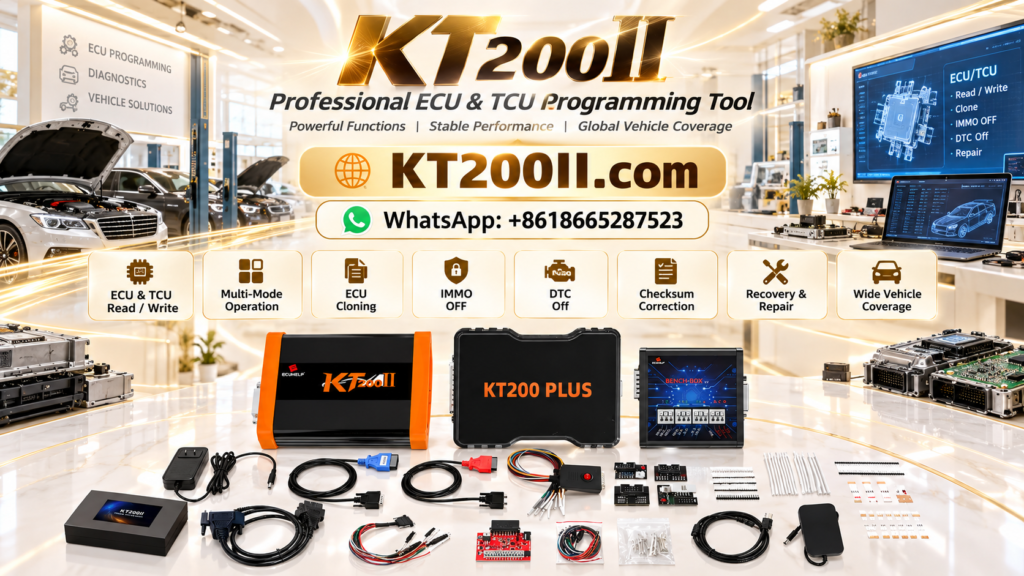
KT200II is the official ECU and TCU programming solution developed by ECUHELP. It is designed for professional reading, writing, cloning, repair, and tuning workflows on supported control units.
Visit the KT200II Product page to learn more about supported functions and available versions.
The official KT200II website is KT200II.COM. Customers can purchase the official product through the HELPECU.COM official store.
For purchase questions or compatibility confirmation, contact the official KT200II team through WhatsApp at +86 186 6528 7523.
Final ECU Programming Workflow
- Define the customer’s repair or programming requirement.
- Record the vehicle and ECU identification information.
- Check the exact ECU in the official support list.
- Select the correct OBD, Bench, Boot, JTAG, or BDM procedure.
- Back up the original data and protect the first read.
- Prepare stable power, wiring, and communication.
- Verify the file before writing.
- Complete the programming or cloning operation without interruption.
- Test communication, fault codes, live data, and vehicle operation.
- Save the final report and file history for future service.
A structured workflow helps technicians reduce avoidable errors and perform ECU programming jobs in a more controlled, professional, and repeatable way.