KT200II ECU Communication Stability Test Before Reading
KT200II Official Technical Guide
KT200II ECU Communication Stability Test Before Reading
Before saving an original ECU file, technicians should confirm that the communication path is stable. A control unit may be detected once but fail during a longer read if the connection, power supply, protocol, or selected vehicle information is incorrect. A short communication stability test can reduce avoidable read failures.
Why Test Communication Before Reading?
ECU data reading requires continuous communication between the computer, KT200II hardware, cable or adapter, vehicle or bench setup, and the control unit. A loose connector, incorrect mode, unstable voltage, or unsuitable protocol can interrupt the operation before the original file is saved.
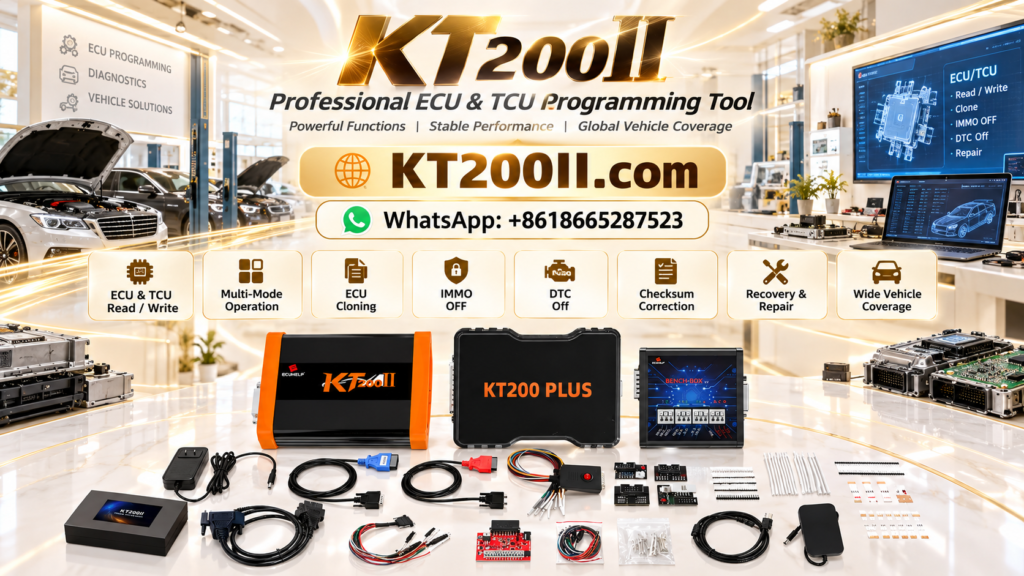
KT200II supports OBD, Bench, Boot, JTAG, and BDM operations on supported ECUs and TCUs. The official KT200II Operation Modes guide explains how different connection methods are selected according to the ECU type and protocol.
Communication Stability Test Checklist
| Test Point | What to Confirm | Result to Record |
|---|---|---|
| Device recognition | The software recognizes the KT200II hardware and correct version | Device status and software version |
| ECU identification | The ECU or TCU returns valid identification information | Part number and software information |
| Repeated response | Identification remains available after reconnecting or repeating the test | Stable or intermittent communication |
| Connection mode | OBD, Bench, Boot, JTAG, or BDM matches the supported protocol | Selected mode and adapter |
| Power condition | Vehicle or bench voltage remains suitable during the test | Voltage notes and power source |
Step-by-Step Communication Test
1. Confirm the Correct ECU or TCU Profile
Before connecting, identify the vehicle, engine or transmission, ECU/TCU brand, hardware number, software number, and processor when available. Use the official KT200II Supported ECU List to confirm that the control unit and required operation are documented.
2. Check the Programming Workstation
Open the correct KT200II software and confirm that the hardware is recognized. The official KT200II Software Download page provides online and offline packages for supported Windows systems. Use the package that matches the purchased device configuration.
3. Inspect the Physical Connection
Check the USB cable, vehicle OBD connector, bench harness, probes, breakout adapter, ECU connector, power leads, and ground connection. Make sure the connector is fully seated and that no cable is under tension. For Bench or Boot operations, verify the approved pinout before applying power.
4. Perform an Identification Read
Start with ECU identification rather than immediately selecting a full data read. Confirm that the software returns a valid ECU or TCU identity. Compare the returned information with the label and job record. If the result is blank, inconsistent, or unrelated to the connected control unit, stop and investigate.
5. Repeat the Identification Test
Repeat the identification request after a short pause or after reconnecting the communication session. A stable control unit should respond consistently under the same conditions. If the ECU is detected only once, do not proceed to a long read until the connection problem has been resolved.
6. Observe the Communication During the Test
Watch for connection drops, repeated prompts, software freezing, unusual delays, or error messages. These signs may indicate an incorrect protocol, unstable power, poor contact, incompatible driver, or a damaged ECU. Save a screenshot of the error before changing the setup.
7. Start the Original Read Only After Confirmation
Once identification is stable, begin the required Flash, EEPROM, or full data read. Keep the power supply and cables untouched during the operation. Do not use the computer for unrelated tasks, and wait for the software to confirm that the file has been saved successfully.
8. Verify and Protect the Saved File
After reading, confirm the file name, file size, memory area, and storage location. Save a second backup in a separate location. Keep the original read clearly separated from any edited or modified file.
Common Communication Test Results
| Observation | Recommended Action |
|---|---|
| ECU identification is stable and matches the label | Proceed with the supported read operation and create a verified backup. |
| ECU responds intermittently | Check power, ground, connector contact, cable strain, and the selected protocol. |
| Identification does not match the ECU | Stop and confirm the vehicle profile, ECU number, connection mode, and pinout. |
| Software loses the device during the test | Check the USB driver, cable, computer power settings, and software version before reconnecting. |
When to Contact Support
Contact official support before continuing if the ECU cannot be identified, communication drops repeatedly, the required operation is not listed, or the hardware and software information do not match. Send the vehicle brand, model, year, ECU/TCU number, processor, connection mode, software version, and error screenshot.
For advanced ECU and TCU programming workflows, review the official KT200II Product page. It provides an overview of the tool and its supported professional operation modes.
Official Purchase and Technical Support
KT200II is developed by ECUHELP for professional ECU and TCU reading, writing, cloning, tuning, and repair operations. To purchase a genuine device, use the official HELPECU KT200II store page.
For compatibility checks or communication questions, contact the official team through WhatsApp +86 1866527523. A stable identification test before reading can help technicians protect original ECU data and reduce avoidable interruptions.