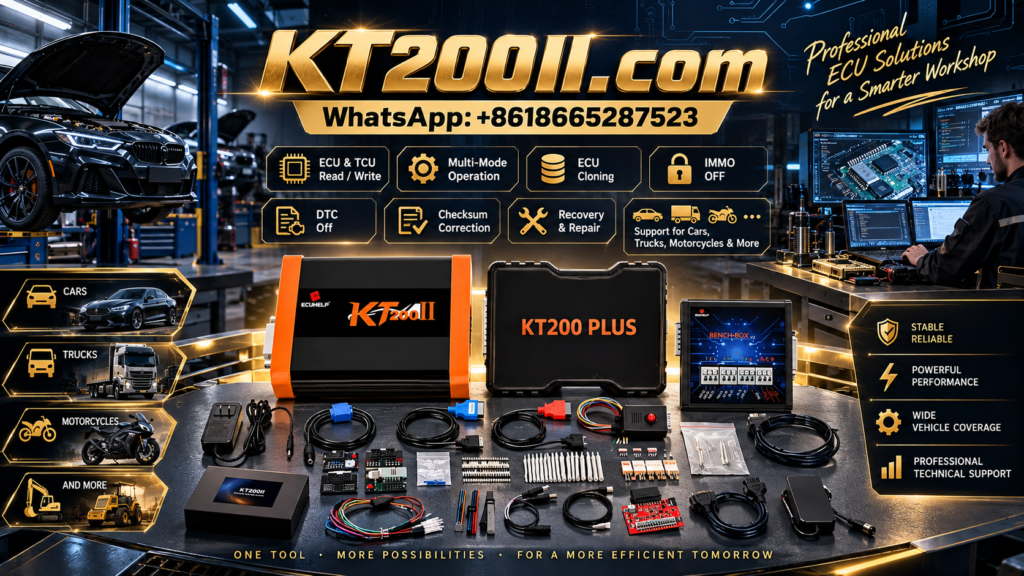
KT200II OBD ECU Programming Guide
KT200II OBD ECU Programming Guide: Vehicle-Side Read and Write Workflow
OBD programming is one of the most convenient ways to communicate with a vehicle ECU when the exact protocol supports vehicle-side access. The ECU can often remain installed while a technician performs identification, backup, read or write operations through the diagnostic port.
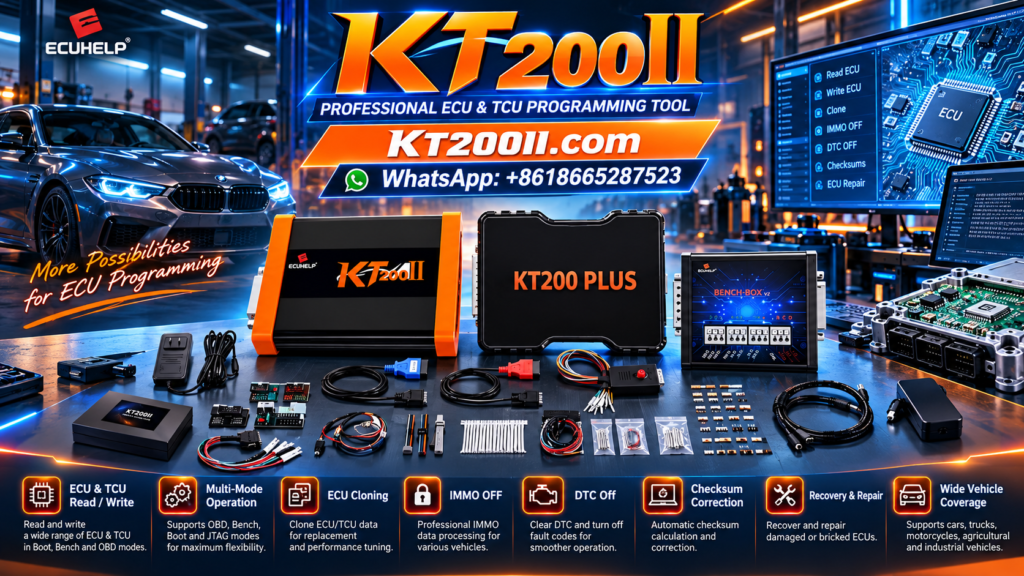
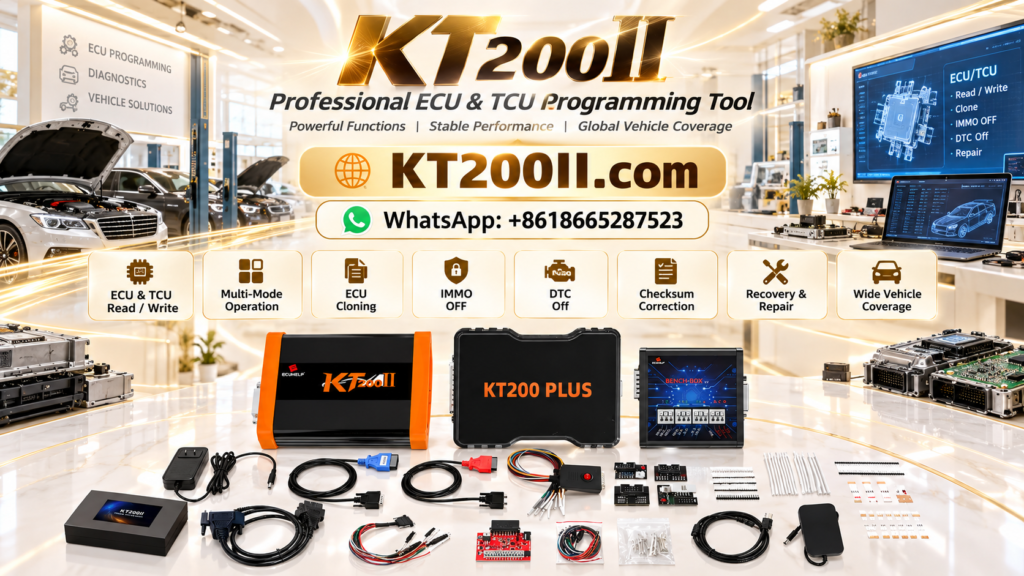
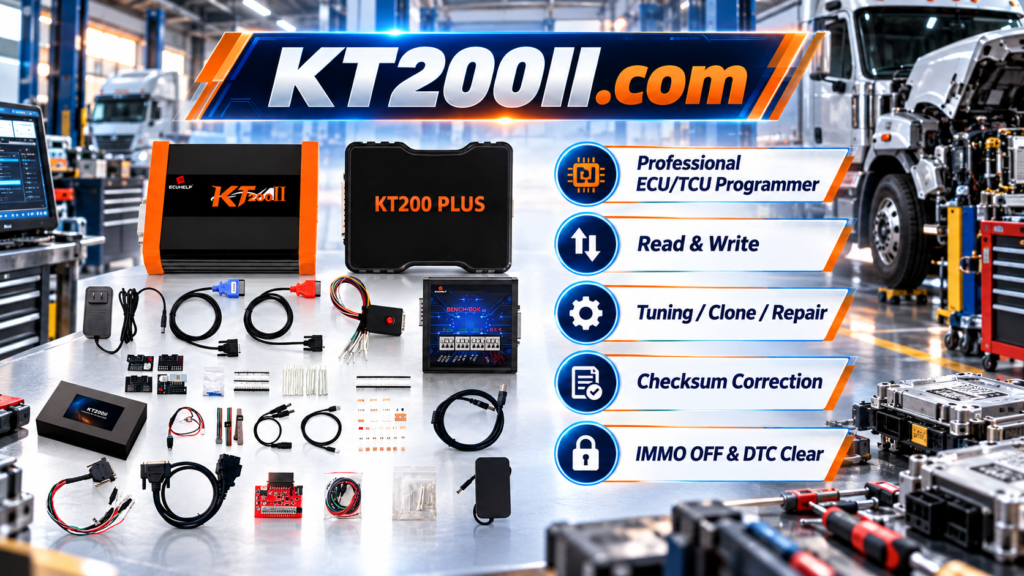
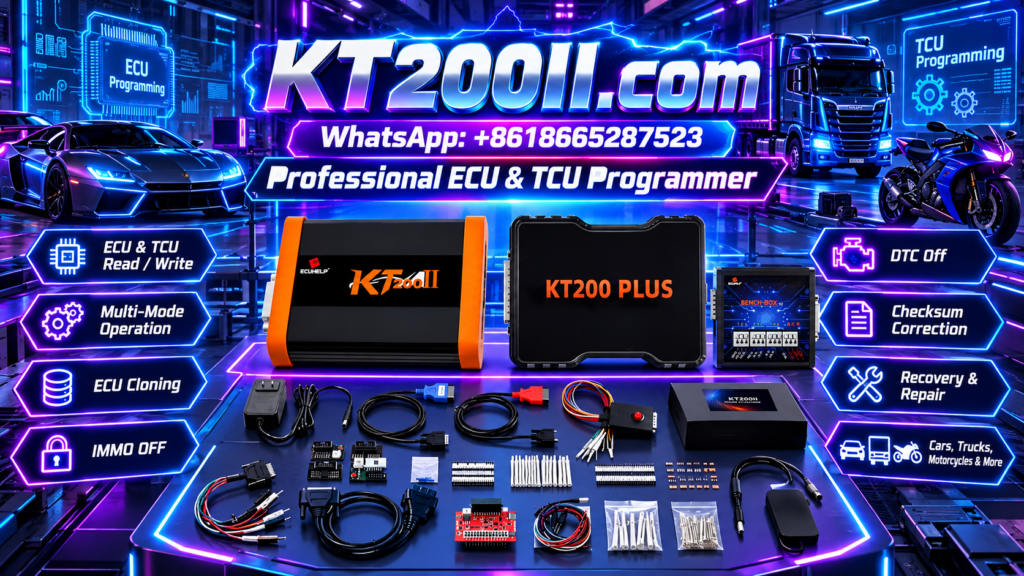
The official KT200II ECU Programmer supports OBD operations for selected vehicles and ECUs. A reliable workflow still requires compatibility checking, stable vehicle power, correct software, original data protection and final validation.
What Is OBD ECU Programming?
OBD ECU programming uses the vehicle diagnostic connector to communicate with a supported control unit. It is commonly used for professional ECU identification, reading, writing and selected cloning or tuning operations.
OBD access is not universal. Some ECUs require Bench, Boot, JTAG or BDM communication instead. Always check the supported vehicle and connection method before beginning.
| OBD Workflow Stage | Purpose | Main Check |
|---|---|---|
| Vehicle identification | Confirm brand, model, year and engine | Match the intended ECU application |
| ECU identification | Read hardware and software information | Confirm ECU family and protocol |
| Original backup | Save supported ECU data before writing | Protect the original file |
| File verification | Compare file and target ECU information | Check hardware, software and file size |
| OBD write | Program supported data through the diagnostic port | Maintain stable power and communication |
| Final validation | Confirm communication and vehicle operation | Scan DTCs and perform authorized tests |
Step 1: Confirm OBD Support
Open the official KT200II Supported ECU List and search by vehicle, ECU type, processor, read/write method or connection mode.
Before connecting the tool, confirm:
- The exact vehicle and ECU family are listed.
- OBD is shown as an available connection method.
- The required read, write, backup or cloning operation is supported.
- The selected KT200II version includes the required function.
- The software and vehicle accessories are ready.
Compatibility warning: A vehicle may be listed while a specific ECU version or operation is unavailable. Confirm the ECU number, hardware, software and protocol before programming.
Step 2: Prepare the Vehicle
OBD programming depends on stable vehicle-side communication. Prepare the vehicle and workshop computer before starting.
| Preparation Area | Recommended Action |
|---|---|
| Battery condition | Confirm that the battery is charged and suitable for the operation |
| Power support | Use a regulated support supply when required by the protocol |
| Vehicle status | Follow the software instructions for ignition and engine status |
| Diagnostic connector | Inspect the OBD port for damage, contamination or loose terminals |
| Workshop computer | Use stable power and disable sleep mode during programming |
Step 3: Record ECU Identification
Use the correct USB and diagnostic cables and follow the supported protocol instructions.
Record the ECU manufacturer, ECU family, hardware number, software number and available processor information.
Save diagnostic trouble codes and customer symptoms before changing ECU data.
If the ECU cannot be identified, stop before attempting to write. Check vehicle power, OBD wiring, software version and protocol selection first.
Step 4: Create an Original Backup
Where the OBD protocol supports reading, create a backup before writing any file. Save the file with a clear name that includes the vehicle, ECU number, software version and date.
| Backup Record | Recommended Information |
|---|---|
| Vehicle | Brand, model, year, engine and market |
| ECU | Manufacturer, part number and hardware number |
| Software | Software version and calibration information |
| Memory area | Flash, EEPROM or other area supported by the protocol |
| Connection | OBD and selected protocol |
| File status | File size, checksum result and software messages |
A virtual read is not automatically a complete physical clone of every ECU memory area. Follow the protocol description and keep the original vehicle and ECU data available.
Step 5: Verify the File Before Writing
Before selecting the OBD write function, compare the target ECU and the file carefully.
- Confirm the ECU hardware number.
- Confirm the software version and calibration family.
- Check the file size and memory area.
- Review checksum information when supported.
- Confirm the file belongs to the intended vehicle application.
- Keep the original backup unchanged.
A valid checksum does not prove that the file belongs to the correct ECU. File integrity and ECU compatibility must both be verified.
Step 6: Select the Correct OBD Operation
Use the KT200II software to select the operation supported by the exact ECU protocol. Available functions may include identification, reading, writing, cloning or other service operations.
The official KT200II Operation Modes guide explains that OBD mode is available only when the ECU protocol supports vehicle-side communication. Another ECU may require Bench or Boot access.
| Operation | Typical Purpose | Important Condition |
|---|---|---|
| Identification | Read ECU information before programming | Must complete correctly before writing |
| Read | Create a backup of available data | Supported memory areas depend on the protocol |
| Write | Program a compatible file | File and ECU must match |
| Cloning | Support a compatible replacement ECU workflow | Original and replacement hardware must be compatible |
Step 7: Perform the OBD Write
Compare the software identification with the vehicle and file information.
Keep the vehicle battery, support supply, OBD cable and computer connected.
Follow all software messages and do not switch the ignition or disconnect the tool unless instructed.
Keep the final file, software log and technician notes for the repair record.
Authorized repair notice: OBD ECU programming, cloning and tuning operations must be performed by trained professionals for lawful vehicle service with the owner’s authorization.
Step 8: Validate the ECU After OBD Programming
Do not rely only on the software completion message. Perform a complete post-programming validation.
| Validation Area | Recommended Check |
|---|---|
| ECU communication | Confirm that the diagnostic tool identifies the ECU |
| Software identity | Compare final hardware and software information |
| Fault memory | Read and save DTCs before clearing them |
| Vehicle functions | Check starting, engine operation and related systems |
| Road or bench test | Perform an authorized test under safe conditions |
| Final scan | Rescan the ECU and save the service report |
Official KT200II Resources
Use the official KT200II navigation pages to support each stage of your OBD workflow:
- KT200II Product Page for product information and versions.
- KT200II Operation Modes for OBD, Bench, Boot, JTAG and BDM access.
- KT200II Software Download for online and offline software packages.
- KT200II Supported ECU List for vehicle and protocol compatibility.
- KT200II Technical Blog for ECU and TCU programming guides.
Frequently Asked Questions
Can KT200II program every ECU through OBD?
No. OBD availability depends on the exact vehicle, ECU type, processor, software version and protocol. Check the supported list first.
Is OBD programming safer than Bench or Boot?
OBD can be convenient for supported applications, but every method requires correct power, wiring, software and file preparation.
Can I write a file without reading the original ECU?
Only follow a protocol-supported workflow. Reading the original ECU where possible provides important data for comparison and recovery.
What should I do if OBD communication fails?
Check battery voltage, support power, OBD connector, cables, software version, protocol selection and vehicle compatibility. Do not repeat the write operation until the cause is understood.
Where can I purchase the official KT200II?
Global customers can purchase the genuine KT200II from the official Helpecu KT200II product page. Send the vehicle brand, model, year and ECU information to support before ordering if you need a compatibility check.
How can I contact KT200II support?
Contact the official team through WhatsApp +86 18665287523 with the vehicle, ECU type and required OBD operation.
Start a Controlled KT200II OBD Programming Workflow
Confirm OBD support, prepare stable vehicle power, back up original ECU data, verify the file and complete a full diagnostic validation after writing.